Resize Pages
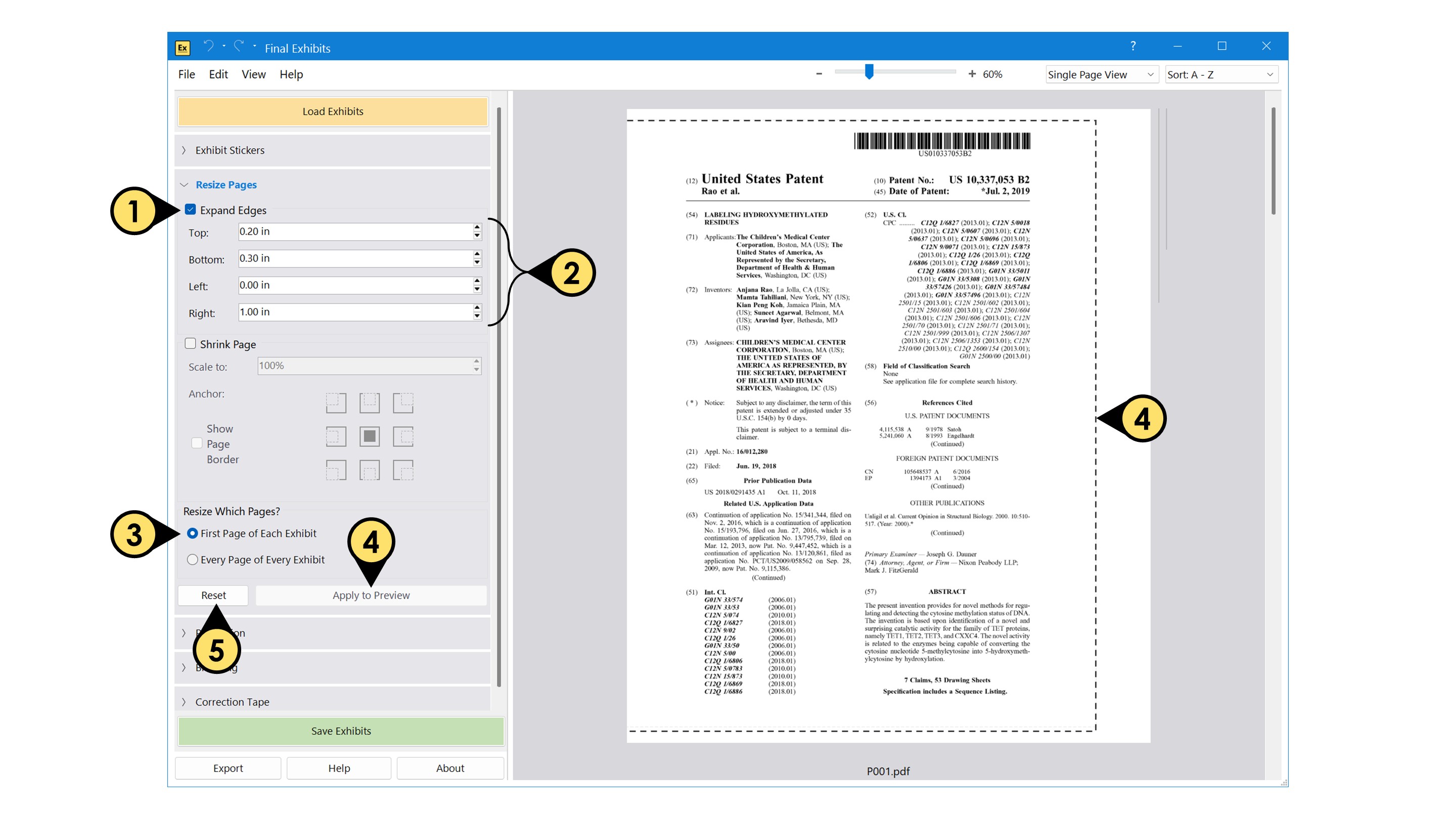
Expand Edges of the Page
Final Exhibits can resize individual pages in your exhibit file folder.
- Check the “Expand Edges” box under the “Resize Pages” menu.
- Enter how much you want to expand on each edge.
- Select the pages you want to resize in each exhibit.
- Click “Apply to Preview” to see how the changes will look on your exhibits. A dashed outline is added to illustrate the size of the original page.
- Remove all resizing previews by clicking “Reset.”
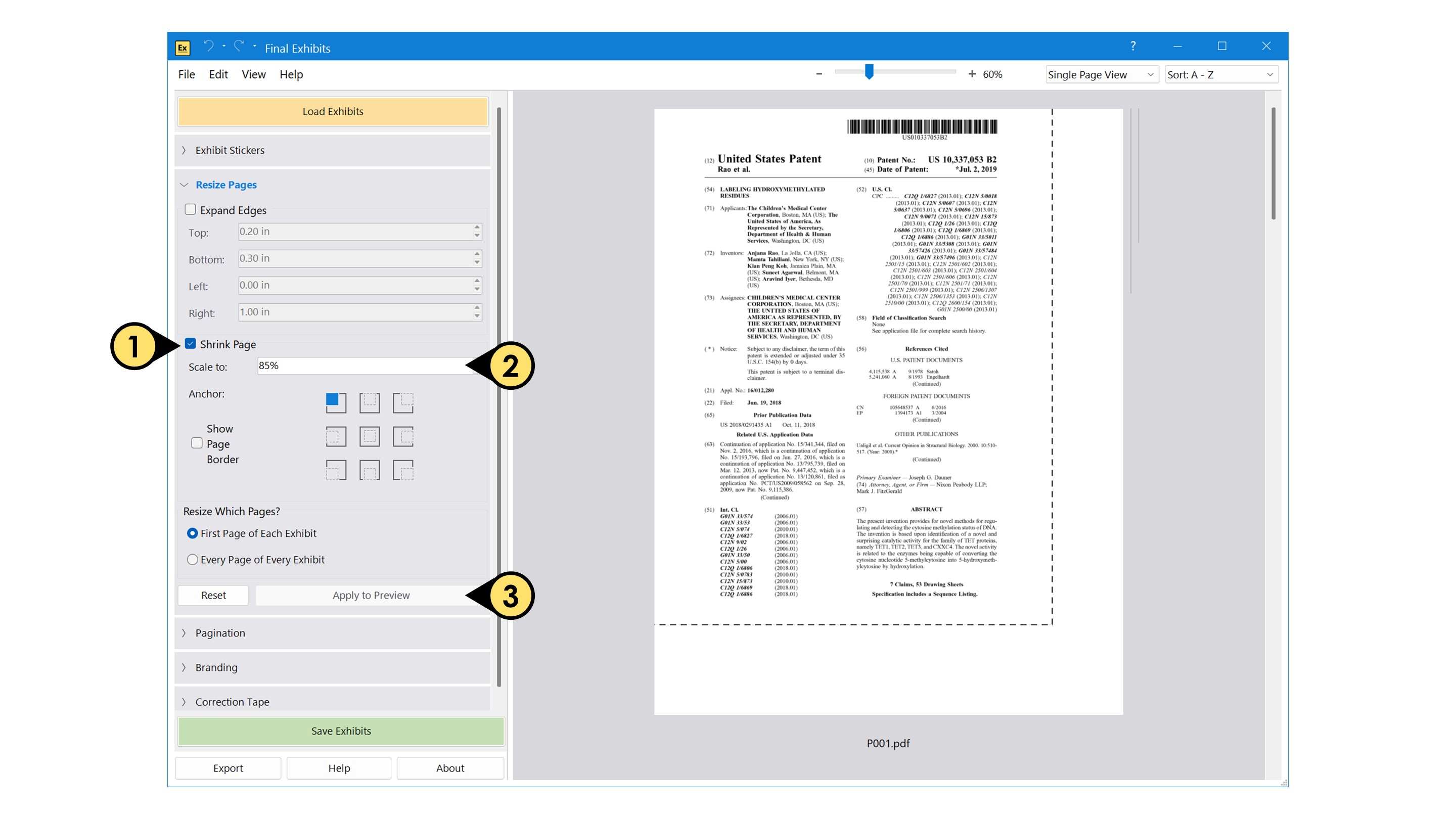
Shrink the Contents of the Page
- Check the “Shrink Page” box under the “Resize Pages” menu.*
- Enter the desired percentage scale and select an anchor point.
- Click “Apply to Preview.”
- You can use Expand Edges and Shrink Page at the same time.
- You can resize pages at the same time you are adding exhibit stickers!