The Sticker Editor
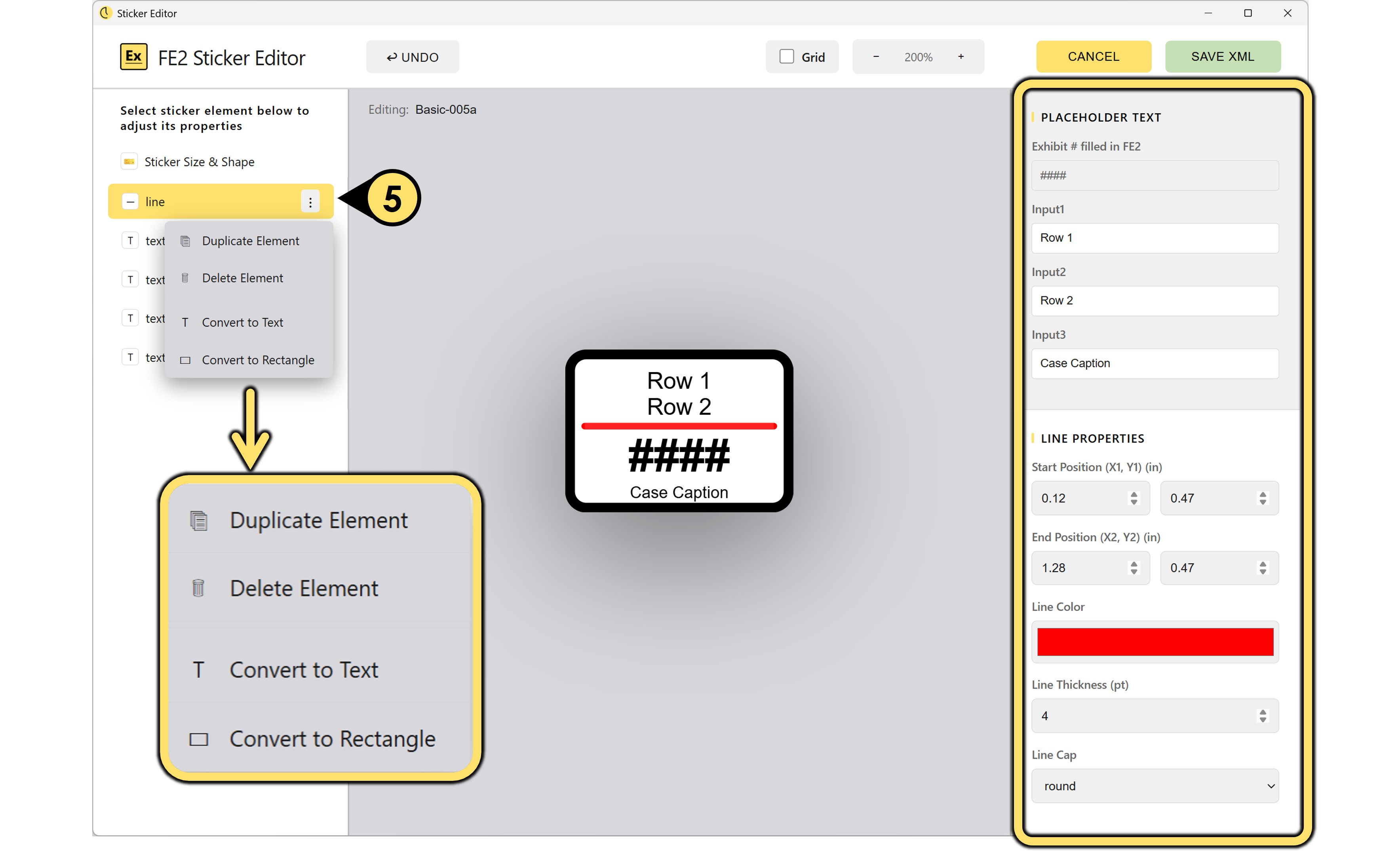
1. The Sticker Editor Interface
The Sticker Editor is designed to modify and customize existing stickers — if you're looking to build a sticker from scratch, you'll want to start with a template or work directly in the Text Editor instead.
When you open a sticker via Open in Editor, the editor will open in a new window:
- The Canvas – previews your loaded sticker.
- The Element Tree – lists the XML elements that make up the sticker.
- The Properties Panel – shows the attributes of the selected element (e.g. font, size, color, position, and alignment.)
- The Toolbar – provides quick-access buttons for common actions: Undo, Grid, Zoom, Cancel, and Save XML.
2. Selecting an Element and Adjusting Its Properties
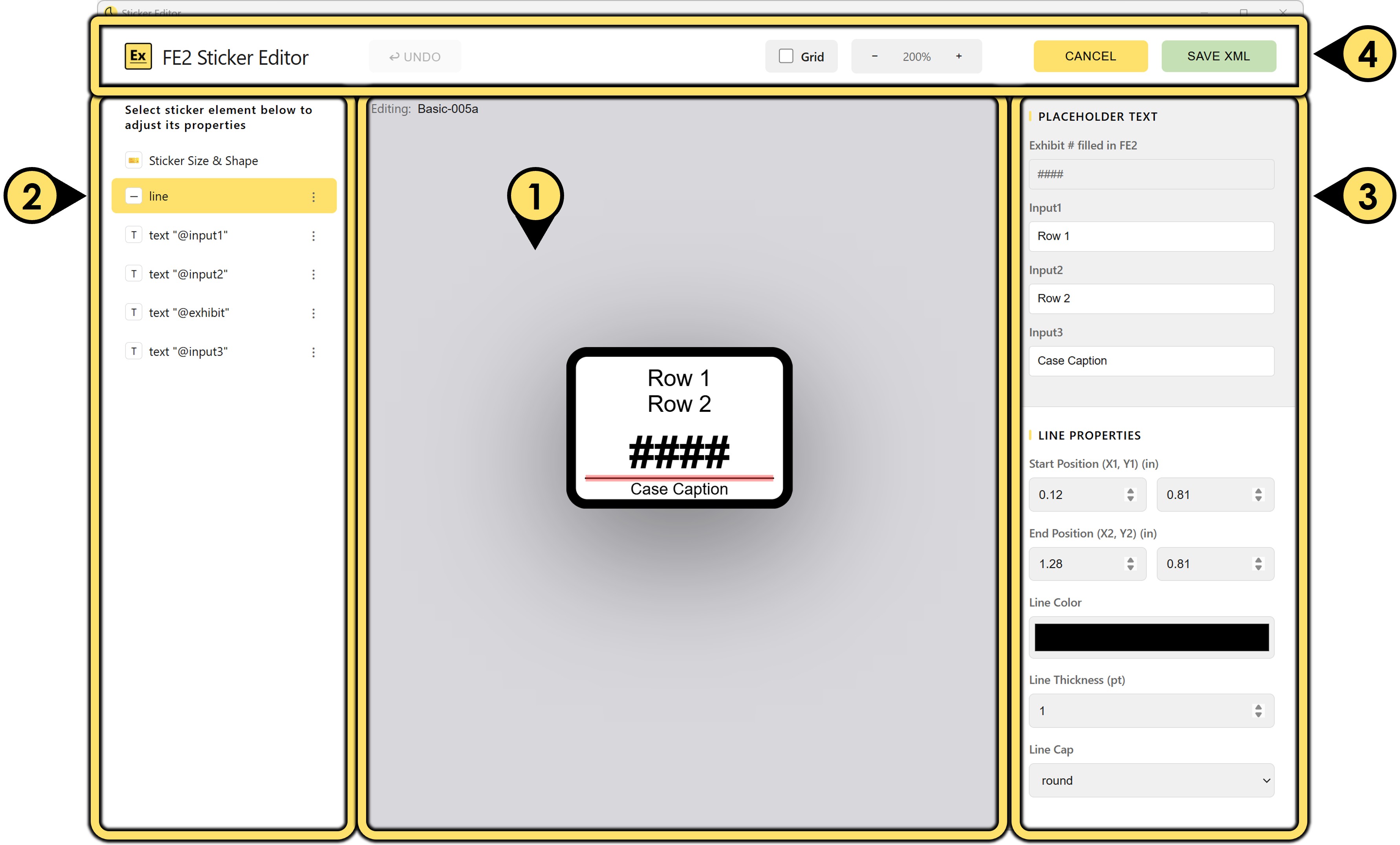
- To select an element, either click it directly on the Canvas or click its entry in the Element Tree. The selected element will be highlighted on the Canvas with a bounding box, and its attributes will populate the Properties Panel.
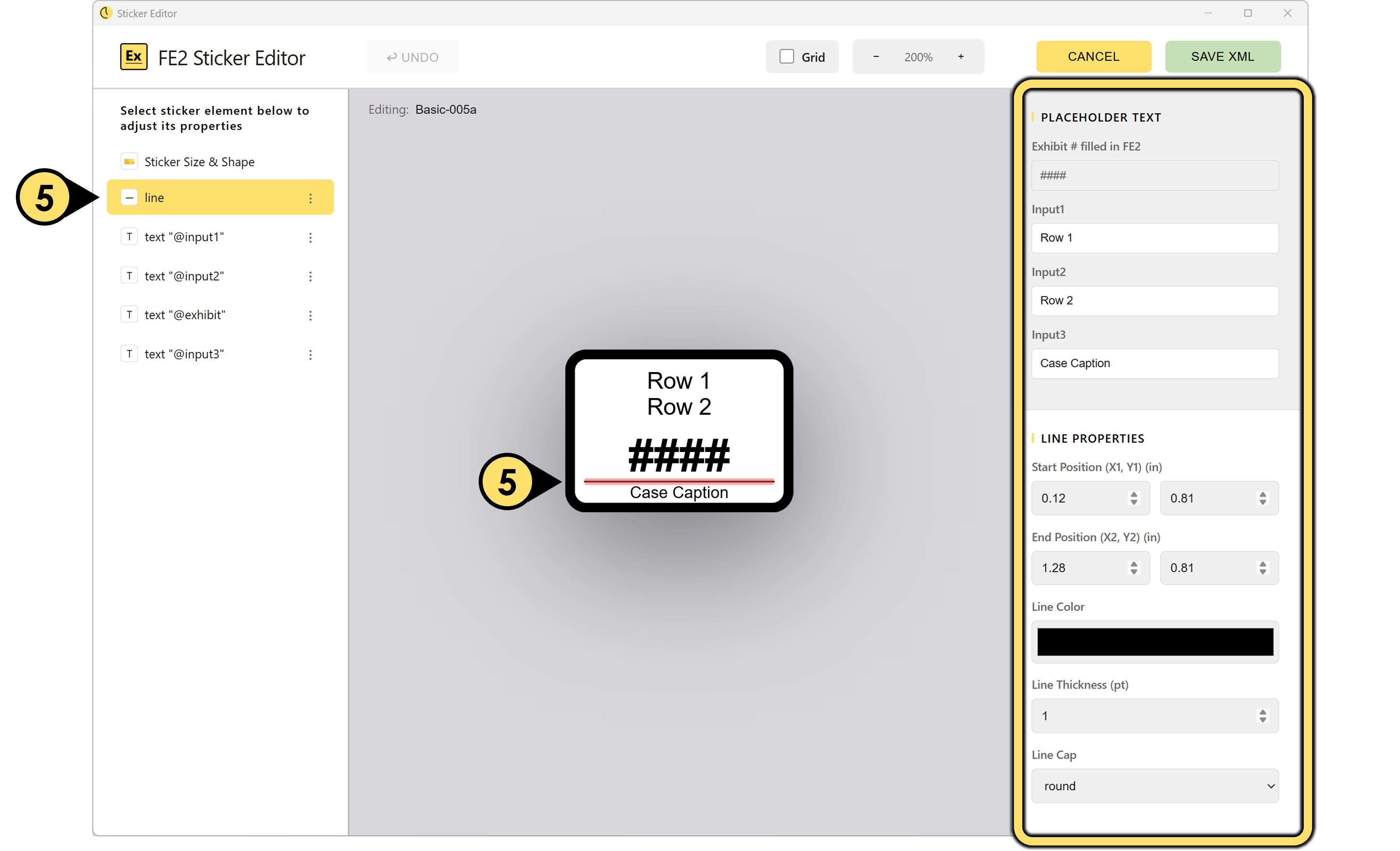
- Modify the elements using the available properties and click save. The sticker will update in Final Exhibits and is ready for use.
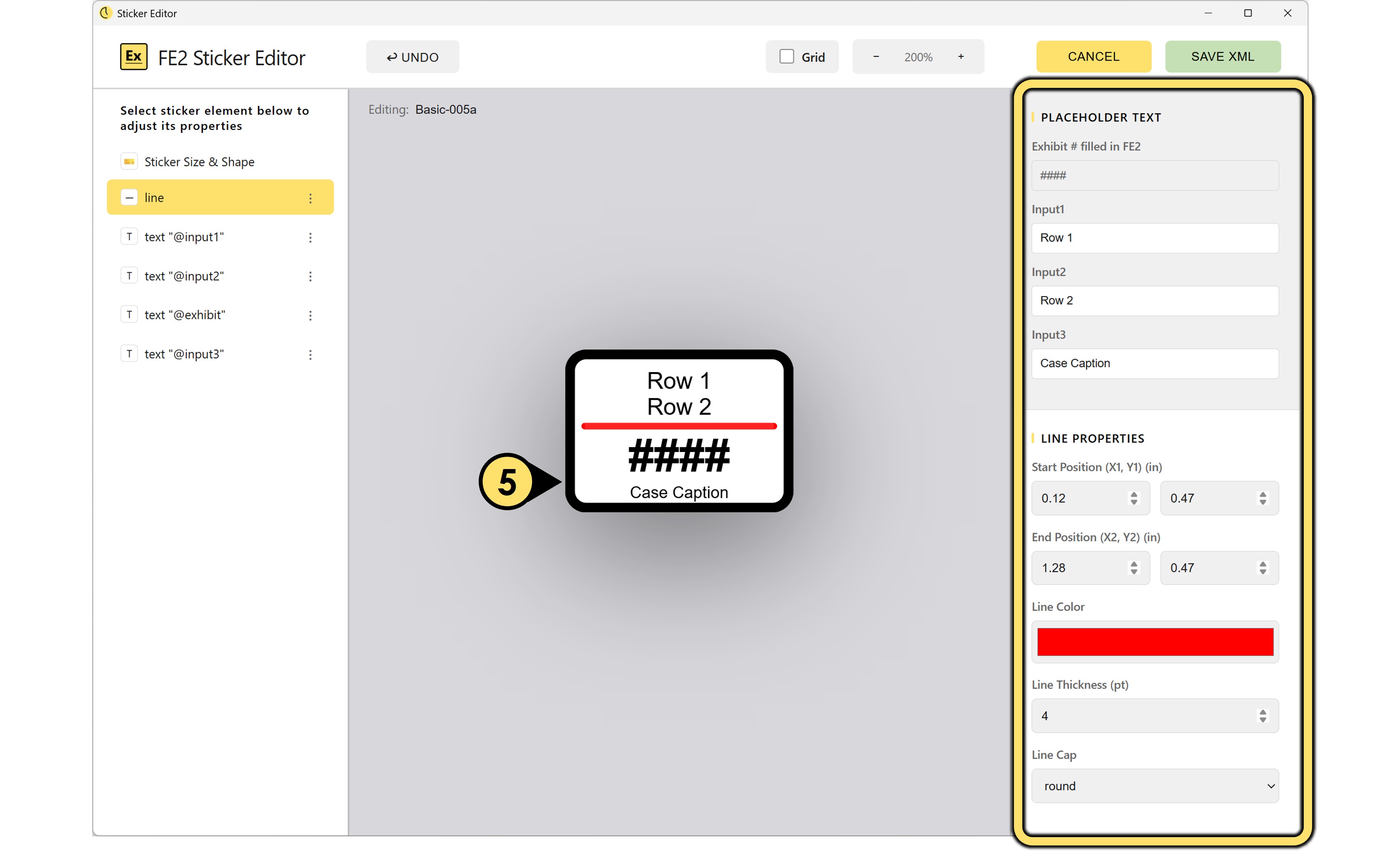
- Clicking the kebab menu (the three vertical dots icon on the right side of any element row) reveals the options available for that element, such as Duplicate Element, Delete Element, Convert to Text, and Convert to Rectangle.